Show it on a TV with AirPlay
- Do I need an Apple TV?
- No. Many TVs from Samsung, LG, Sony and others support AirPlay. Your iPhone or iPad can show the morning on such a TV with Screen Mirroring.
- How do I show it on the TV?
- Put the phone and the TV on the same Wi-Fi, and turn on the TV.
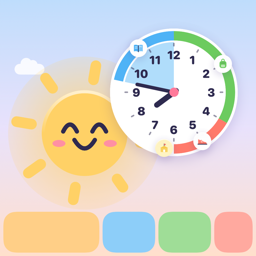
- Open Out We Go and turn the phone on its side. It now shows the same as the TV app.
- Swipe down from the top-right corner of the screen to open Control Center.
- Tap Screen Mirroring and choose your TV.
- If the TV shows a code, type it on the phone.
- How do I tick off tasks?
- The TV shows exactly what the phone shows. Turn the phone upright to tick off a task, then turn it on its side again.
- The TV stopped showing the morning
- Screen Mirroring stops when the phone locks or you switch to another app. Out We Go keeps the phone awake while it is open, so leave the app open and keep the phone plugged in.
- The TV is not in the list
- Check that the phone and the TV are on the same Wi-Fi, and that AirPlay is turned on in the TV’s settings. On Samsung TVs, look for Apple AirPlay Settings.
- How do I stop?
- Open Control Center, tap Screen Mirroring and choose Stop Mirroring.
- Can it start by itself in the morning?
- Partly. An automation in the Shortcuts app can open Out We Go at a set time, but iOS does not let apps or Shortcuts start Screen Mirroring, so that takes two taps.
sverre.johansen@gmail.com
 Out We Go